Inbox - Overview
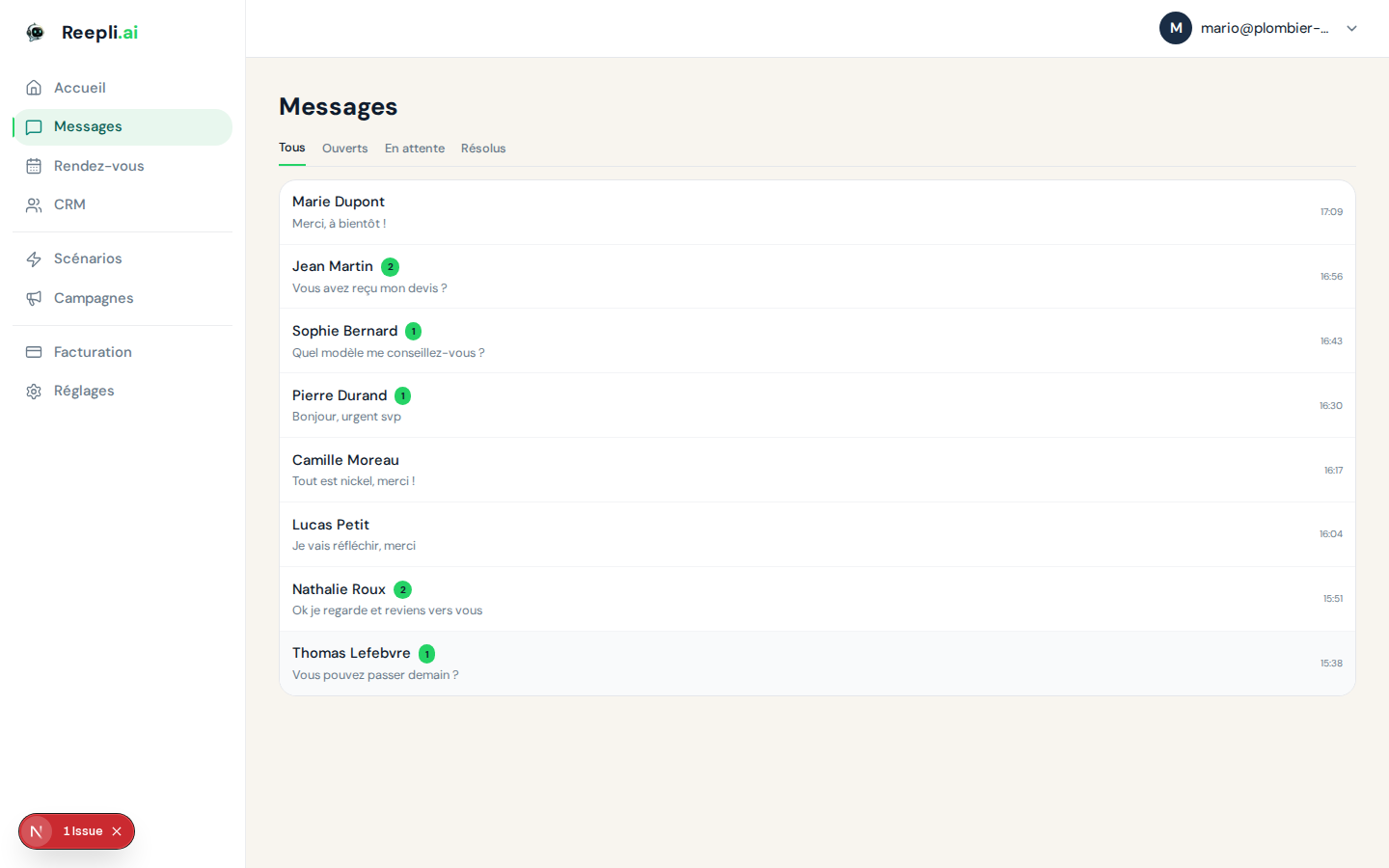
The Reepli Inbox (the Messages page) centralizes all your WhatsApp conversations in a single interface. Since Reepli is single-operator, all conversations come to you: there is no shared queue and no assignment between agents. You steer it alone, with the AI assistant as the first responder.
Why the Messages page?
| Without Reepli | With Reepli |
|---|---|
| You reply from your phone, forgetting messages | A unified view of all threads, updated in real time |
| No structured history per contact | Contact profile + automatic customer summary |
| You type the same replies all day long | The AI assistant replies on its own until you take over |
| Hard to prioritize among several customers | To do / Pending / Resolved / Snoozed statuses to structure the flow |
| No memory between two conversations | Built-in CRM, labels and automatic summary |
Access the Inbox
- Log in at dashboard.reepli.ai.
- Click Messages in the sidebar.
- The list of your conversations appears on the left, the thread of the selected conversation on the right.
Anatomy of the interface
The Messages screen consists of three main areas.
1. Conversation list (left column)
Each entry shows:
| Element | Description |
|---|---|
| Contact name | First and last name (or phone number if not identified) |
| Last message | Preview of the last exchange |
| Timestamp | Time or date of the last message |
| Status | Colored dot (To do, Pending, Resolved, Snoozed) |
| Unread indicator | Blue dot if there are unread messages |
| Labels | Tags applied manually or by a scenario |
The list updates automatically: no need to reload the page when a new message arrives.
2. Conversation thread (central area)
Displays the full history of the conversation:
- Messages from the contact (aligned left).
- Your messages and the AI assistant's messages (aligned right).
- Messages typed from your WhatsApp Business mobile app — shown on the right with a "phone" source indicator.
- System events (status change, manual takeover, etc.).
3. Contact information panel (right column)
Includes:
- Contact details (name, phone, email if provided).
- Labels and CRM tags.
- Automatic customer summary (AI-generated from the history).
- List of past and upcoming appointments.
- An indicator showing whether the assistant is paused on this thread or whether you've taken over.
Conversation statuses
Reepli uses four statuses to structure your workflow.
| Status | Description | Color |
|---|---|---|
| To do | Active conversation, awaiting an action from you or the assistant | Green |
| Pending | You've replied, you're waiting for the contact's reply | Orange |
| Resolved | The request is handled, the thread is closed | Gray |
| Snoozed | Conversation paused until a defined date / time | Blue |
Typical lifecycle
- New message received — the conversation switches to To do.
- You or the assistant reply — the status may switch to Pending.
- The contact replies — the conversation returns to To do.
- Request handled — you switch the status to Resolved.
- A later new message — the conversation reopens automatically to To do.
See Manage conversations for the details of the transitions.
Taking over and handing control back to the assistant
When you type and send a message in Messages, the AI assistant automatically pauses on that thread. You stay in control until you decide to hand control back to the assistant.
To reactivate the assistant:
- Open the conversation.
- Click Reactivate assistant in the action bar.
- The assistant takes over again on the contact's next message.
Send a message
Text message
- Select a conversation.
- Type your message in the text area at the bottom.
- Press Enter or click the send button.
Message with an attachment
- Click the paperclip icon.
- Choose the file type:
- Image: JPG, PNG (max 5 MB).
- Video: MP4 (max 16 MB).
- Document: PDF, DOCX, XLSX, etc. (max 100 MB).
- Select the file.
- Add an optional caption.
- Click Send.
Template message (Meta template)
To follow up with a contact outside the 24-hour window imposed by WhatsApp, you must use a Meta pre-approved template.
- Click the template icon in the toolbar.
- Select an approved template.
- Fill in the variables.
- Click Send.
After 24 hours without a message from the contact, Meta no longer allows free-form messages. You must use a pre-approved template. See WhatsApp - Templates.
Coexistence with WhatsApp Business mobile
Reepli supports coexistence: you can use both the dashboard and the WhatsApp Business app on your phone, on the same number.
When you type a reply from your phone via the WhatsApp Business app, the message is added to the conversation as if it had been sent from Reepli, with a "sent from phone" visual indicator. The thread stays consistent.
This is especially useful on the go: you stay reachable and everything stays centralized.
Searching conversations
Quick search
- Click the search bar at the top of the list (shortcut Ctrl + K / Cmd + K).
- Enter a term: name, phone number or message content.
- Results appear in real time.
Quick filters
The sidebar offers pre-configured filters:
- All — all active conversations.
- Unread — conversations with unread messages.
- Pending — conversations awaiting the contact's reply.
- Resolved — closed conversations.
- Snoozed — conversations temporarily paused.
- Labels — filtering by applied label.
See Labels and filters for advanced filtering.
Real-time updates
The Messages page refreshes automatically as soon as an event occurs:
- A new message from a contact.
- A reply from the AI assistant.
- A status change.
- An update to a contact profile.
No action is required from you. See Notifications for the details.
Performance indicators
Reepli tracks your activity in Messages and displays simple indicators:
| Indicator | Description |
|---|---|
| Conversations to do | Number of active threads |
| First response time | Average delay before the first reply (yours or the assistant's) |
| Appointment booking rate | Percentage of conversations leading to a booked slot |
| Message volume | Total number received and sent over the period |
The details of aggregated statistics by campaign can be found in Campaign analytics.
Next steps
- Manage conversations — statuses, search, archiving.
- Single-operator mode — why there is no assignment between agents.
- Recurring replies via scenarios — how the assistant handles repetitive questions.
- Labels and filters — organize the flow.
- Google review request — automate the review request after a service.
If you have an issue with the Inbox, contact support from the dashboard or by email at [email protected].