Single-operator mode
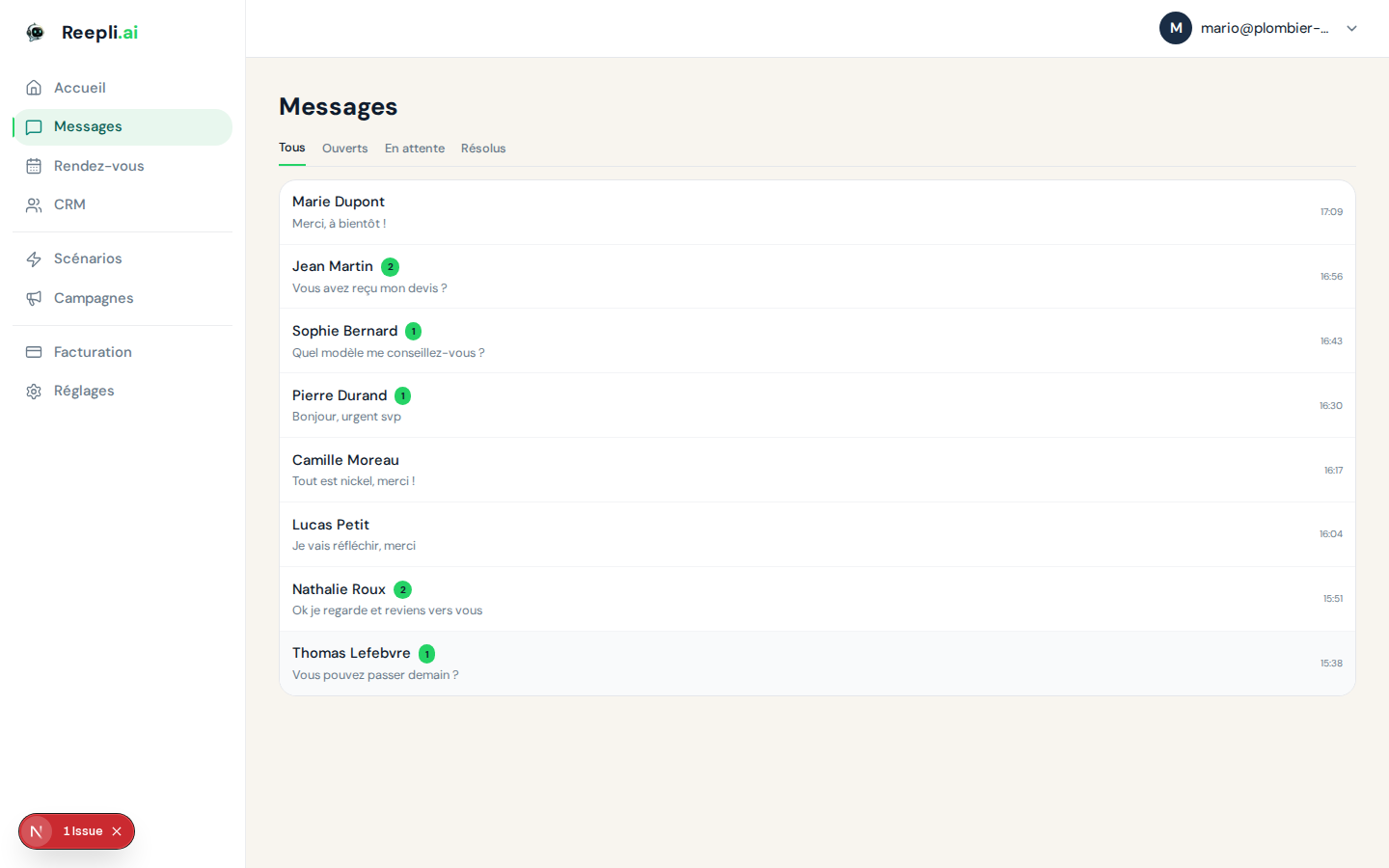
Reepli is designed for a single operator. There is no shared conversation queue, no rotation mechanism (round-robin), and no assignment between agents. All conversations come to you. This page explains how Reepli makes up for the absence of a team with an AI assistant that replies first, and how you take over whenever you choose to.
Why no assignment between agents?
Reepli is aimed at solopreneurs, craftspeople, freelancers and small businesses who answer their WhatsApp customers themselves. For this profile, assignment between agents adds nothing: there is only one person to reply.
Rather than simulating a team with complex rules, Reepli relies on scenario-based automation and a high-performing AI assistant as the first responder. You stay in control, but without having to type every reply.
See Single-operator mode (account) for the general context.
The flow of an incoming conversation
When a new message arrives on your WhatsApp number, here is what happens:
- The system receives the message sent by your customer.
- The conversation is created or updated with the status To do.
- If the assistant is not paused on this thread and a scenario applies, it prepares a reply.
- The reply is sent to the contact via WhatsApp.
- You see all of this in real time in Messages.
At any time, you can take over.
Taking over
When you type and send a message in Messages, the AI assistant pauses on that thread. You stay in control until you explicitly decide to hand it back.
This approach has two benefits:
- No contradictory replies: the assistant won't send a message after you've sent a manual one.
- Conversational continuity: your customer doesn't experience an abrupt change of tone.
Reactivating the assistant
- Open the conversation.
- Click Reactivate assistant in the action bar.
- On the contact's next message, the assistant takes over again.
Reactivate the assistant as soon as you've finished your intervention. If you forget, the assistant will no longer reply to the contact's future messages until you hand control back.
The AI assistant as first responder
The AI assistant handles incoming messages according to the scenarios you've enabled. Each scenario corresponds to a business use case:
| Scenario | Use case |
|---|---|
| Lead qualification | Qualify a lead (need, budget, urgency) |
| Appointment booking | Propose a slot and book it in your calendar |
| Frequently asked questions | Answer recurring questions (hours, prices, address) |
| Google review request | Ask for a review after a service |
| Order status | Provide the status of an order |
| Human handoff | Recognize cases that require your human intervention |
The assistant reads the message, identifies the intent and triggers the relevant scenario. Configuration is done in Settings → Assistant and Scenarios. See AI assistant for the details.
Adapting tone and language
By default, the assistant uses the assistant's default language that you've chosen and the tone defined in the settings: friendly, professional, or more formal. You can also force the reply language for a specific contact.
Handoff
Some messages inevitably require human intervention: a dispute, a sensitive request, an unusual situation. In this case, the handoff scenario:
- Flags the conversation so that it moves to the top of your list.
- No longer attempts to reply automatically.
- Pauses the assistant on that thread.
You immediately see that a reply from you is expected.
Coexistence with WhatsApp Business mobile
The number connected to Reepli remains usable from the WhatsApp Business app on your phone. If you reply to a customer on the go from the WhatsApp Business app, the message is added to Messages as if it came from the dashboard.
This is the functional equivalent of a "second workstation": yourself, but on the move. With expected behavior:
- If you type from your phone, the assistant also pauses on that thread (exactly as if you had typed in Messages).
- The thread stays unified in Reepli.
- You can then reactivate the assistant from the dashboard when you return.
Best practices
Enable the right scenarios
The more your scenarios cover your recurring use cases, the less you need to step in. To get started, enable these first:
- Frequently asked questions if you receive a lot of questions about your hours, prices or address.
- Appointment booking if you take appointments.
- Lead qualification if you receive leads to filter.
Set up your availability
Go to Settings → Availability to define your time slots. The assistant won't propose appointments outside of them. Outside business hours, it can send an away message and note the request so you can reply on your return.
Keep an eye on the customer summary
On a recurring contact's profile, the automatic customer summary reminds you of the history: last appointment, last request, sensitive point. This replaces the internal notes you would take as a team.
Don't leave the assistant paused for too long
If you forget to click Reactivate assistant, the bot stays silent on that thread. When you take over for a one-off intervention, remember to hand control back to the assistant afterward.
The Business plan and multi-user
The Business plan (€299/month) includes, on paper, the ability to add additional users. The multi-user interface is not yet exposed in the dashboard. The feature is on our roadmap but without a firm release date.
If multi-agent support with assignment is a critical need for your business, tools like Front or Zendesk are better suited to this use case.
Frequently asked questions
How do I know if the assistant is paused on a thread? The status is shown in the contact's information panel (to the right of the conversation). A visible toggle lets you reactivate the assistant in one click.
If I type a message by mistake, does the assistant stop replying? Yes, as soon as you send a manual message, the assistant pauses on that thread. Reactivate it if the message was sent accidentally.
Can the assistant reply 24/7? Yes. As long as it isn't paused and a scenario applies, the assistant replies autonomously, including at night or on weekends.
How do I handle volume spikes? Enable more scenarios to automate a larger percentage of requests. The frequently-asked-questions and appointment-booking scenarios are the most valuable at peak times.
Next steps
- Manage conversations — statuses, search, archiving.
- Labels and filters — organize your flow.
- Recurring replies via scenarios — how the assistant handles repetitive questions.
- Overview — Inbox fundamentals.
- Single-operator mode (account) — general context.
For any question about how single-operator mode works, contact support from the dashboard or at [email protected].