WhatsApp messaging limits
The WhatsApp Cloud API enforces several safeguards to protect users from spam: the 24-hour service window, your account quality (green / yellow / red), your daily messaging limit (1,000, 10,000, 100,000, or unlimited), and your business name status (approved / pending / rejected).
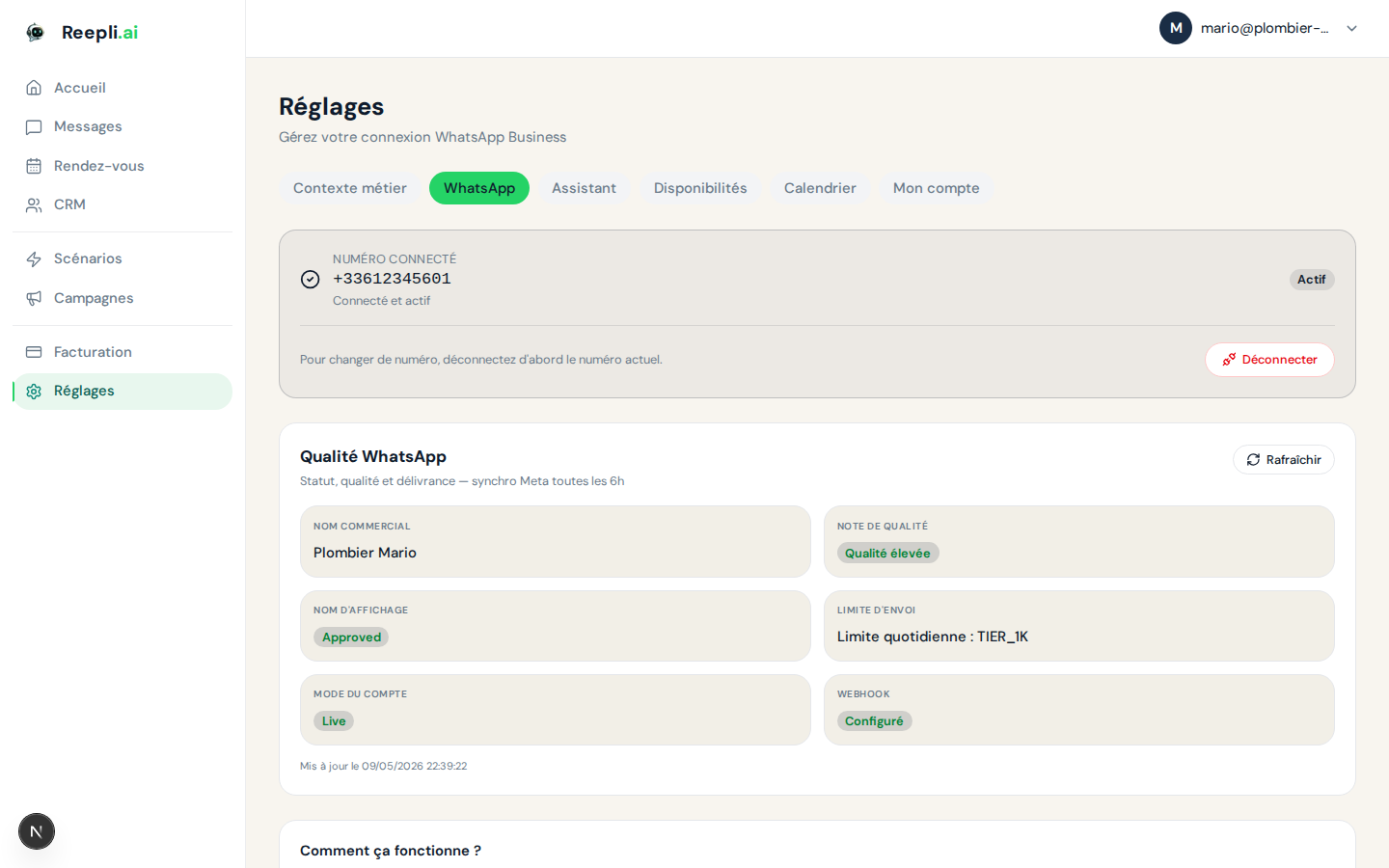
Reepli monitors these four indicators continuously and surfaces them in Settings → WhatsApp. This article explains what they mean and how to progress.
The 24-hour service window
A central, structuring concept.
How it works
With each incoming message from a contact, a 24-hour window opens. During this window:
- You (or the AI) can reply in free text: message, image, audio, document.
- Each new message from the contact extends the window by an additional 24 hours.
- You are not required to use a template.
Outside the window (more than 24 hours since the contact's last message):
- Only Meta-approved templates are accepted.
- Any free message is rejected.
- Sending a template reopens a 24-hour window.
In practice: if the contact writes at 2 p.m., you have until 2 p.m. the next day to reply freely. After that, you'll need to use a pre-approved template to restart the conversation.
Conversation categories
Meta bills per 24-hour conversation, classified into four categories:
| Category | Initiated by | Relative cost |
|---|---|---|
| Service | The customer | The lowest — 1,000/month free per account |
| Utility | You (utility template) | Intermediate |
| Authentication | You (OTP template) | Low |
| Marketing | You (marketing template) | The highest |
The 1,000 free Service conversations/month are a real opportunity: encourage your customers to start the conversation (wa.me/ buttons, QR codes in store, a link on your website).
Your account quality
An assessment of your WhatsApp Business account, assigned and published by Meta. Displayed in Settings → WhatsApp.
| Level | Color | Consequence |
|---|---|---|
| Green | Green | All is well, eligible to progress |
| Yellow | Yellow | Caution — risk of dropping if it degrades |
| Red | Red | Active restrictions, risk of marketing sends being blocked |
Factors that influence quality
| Factor | Positive impact | Negative impact |
|---|---|---|
| User reports | — | Very negative |
| Blocks (the contact blocks your number) | — | Very negative |
| Read rate | Positive | Negative if very low |
| Response rate | Positive | — |
| Opt-outs (STOP) | — | Moderately negative |
Recovering a Green level
If your quality drops to yellow or red:
- Stop Marketing campaigns immediately.
- Focus on Service and Utility conversations (more engaging).
- Identify the template(s) generating the reports (see template quality in the Templates tab).
- Disable or rework the problematic templates.
- Wait 7 to 30 days depending on the depth of the issue.
Daily messaging limit
This limit applies to the number of unique Marketing/Utility conversations you can start per 24 hours.
| Limit | Conversations / 24 h | Typical audience |
|---|---|---|
| 1,000 | 1,000 contacts | New accounts |
| 10,000 | 10,000 contacts | Growing accounts |
| 100,000 | 100,000 contacts | Established businesses |
| Unlimited | No cap | Large accounts (Business Verification + sustained quality) |
Note:
- This limit applies only to conversations initiated by you. Service conversations (initiated by the customer) do not count.
- The unit is the unique contact over a rolling 24 hours, not the message. Sending 5 templates to the same contact in 24 h counts as 1.
Automatic progression
Meta raises your limit without you having to request it, based on these criteria:
- Account quality at the Green level.
- You have used at least 50% of your current limit in the last 7 days.
- Business Verification completed for tiers ≥ 100,000.
Progression follows this path: 1,000 → 10,000 → 100,000 → Unlimited. Each step requires consistent usage volume and maintained quality.
Regression
If your account quality falls to red, your limit can be reduced automatically. Maintain quality.
Business name status
The status of the display name (the name shown to your customers):
| Status | Meaning |
|---|---|
| Approved | The name is approved and in use |
| Pending | Submitted, under review by Meta |
| Rejected | Rejected — edit and resubmit |
Details in Set up your WhatsApp profile.
Additional technical limits
| Parameter | Limit |
|---|---|
| Size of a text message | 4,096 characters |
| Image | 5 MB |
| Video | 16 MB |
| Document | 100 MB |
| Buttons per template | 3 |
| Templates per account | Variable, generally 250+ |
| Send throughput | ~80 messages/second per number |
Strategies to progress
Raise your limit cleanly
- Start with quality — target your most engaged contacts first (existing customers, warm leads).
- Increase gradually — go from 100 to 1,000 messages over 2-3 weeks, not overnight.
- Segment — prefer 3 targeted campaigns of 200 contacts over one blind campaign of 600.
- Monitor the indicators — read rate, response rate, reports (visible on the campaign page after each send).
- React quickly — if a campaign generates many opt-outs, stop the send and analyze.
Maintain quality at the Green level
- Only send to contacts who have given their consent (explicit opt-in, not a box buried in terms and conditions).
- Respect frequencies — no more than 4–5 campaigns per month per contact, across all types.
- Personalize — a generic "Bonjour {{1}}" message with no context is reported more readily than a message that references a specific purchase.
- Clean your database — remove contacts inactive for 6+ months rather than continuing to bombard them.
- Make STOP easy — an opt-out is always better than a report.
FAQ
Q: What happens if I reach my limit? Additional messages are rejected. Wait for the rolling 24-hour window to free up slots.
Q: Do received messages count? No. Only conversations initiated by you count toward the limit.
Q: Can I request a limit increase manually? Progression is automatic on Meta's side. Reepli support can advise you on which levers to activate.
Q: Can my limit decrease? Yes, if your account quality drops to red.
Q: How do I see my current limit? In Settings → WhatsApp, next to the connected number.
Next steps
- Message templates — build your templates well.
- Approval process — avoid rejections.
- Green badge (official business account) — the pinnacle of Meta credibility.
- Campaign best practices — protect your account quality.
For personalized advice on your sending strategy and your limit, contact support via the chat in the bottom right of dashboard.reepli.ai or by email at [email protected].