Set up your WhatsApp profile
Your WhatsApp business profile is what your customers see when they open the conversation: photo, name, description, address, business hours. It is edited from Settings → WhatsApp and synced live with Meta. This article describes each field and the associated approval rules.
Why a polished profile matters
When a customer opens your WhatsApp thread, the profile is their first impression. A complete profile:
- Inspires trust — a logo, an accurate description, a website.
- Improves deliverability — Meta factors profile completeness into its assessment.
- Reduces blocks — a clear profile limits confusion and reports.
The two types of names
WhatsApp distinguishes between two names that it is crucial not to confuse:
| Field | Who sees it | How it is changed |
|---|---|---|
| Display name | Shown to your customers in conversations | Editable via Settings → WhatsApp, subject to Meta approval (1–3 days) |
| Meta-verified business name | The verified name displayed with the green badge if you have one | Managed via Meta Business Manager + the Business Verification process |
In practice:
- Until you have the green badge, your customers see your display name (or simply your number if they have not saved you).
- Once you obtain the green badge, they see your Meta-verified business name with the official green check.
See Green badge (official business account) for the full process.
Business name status
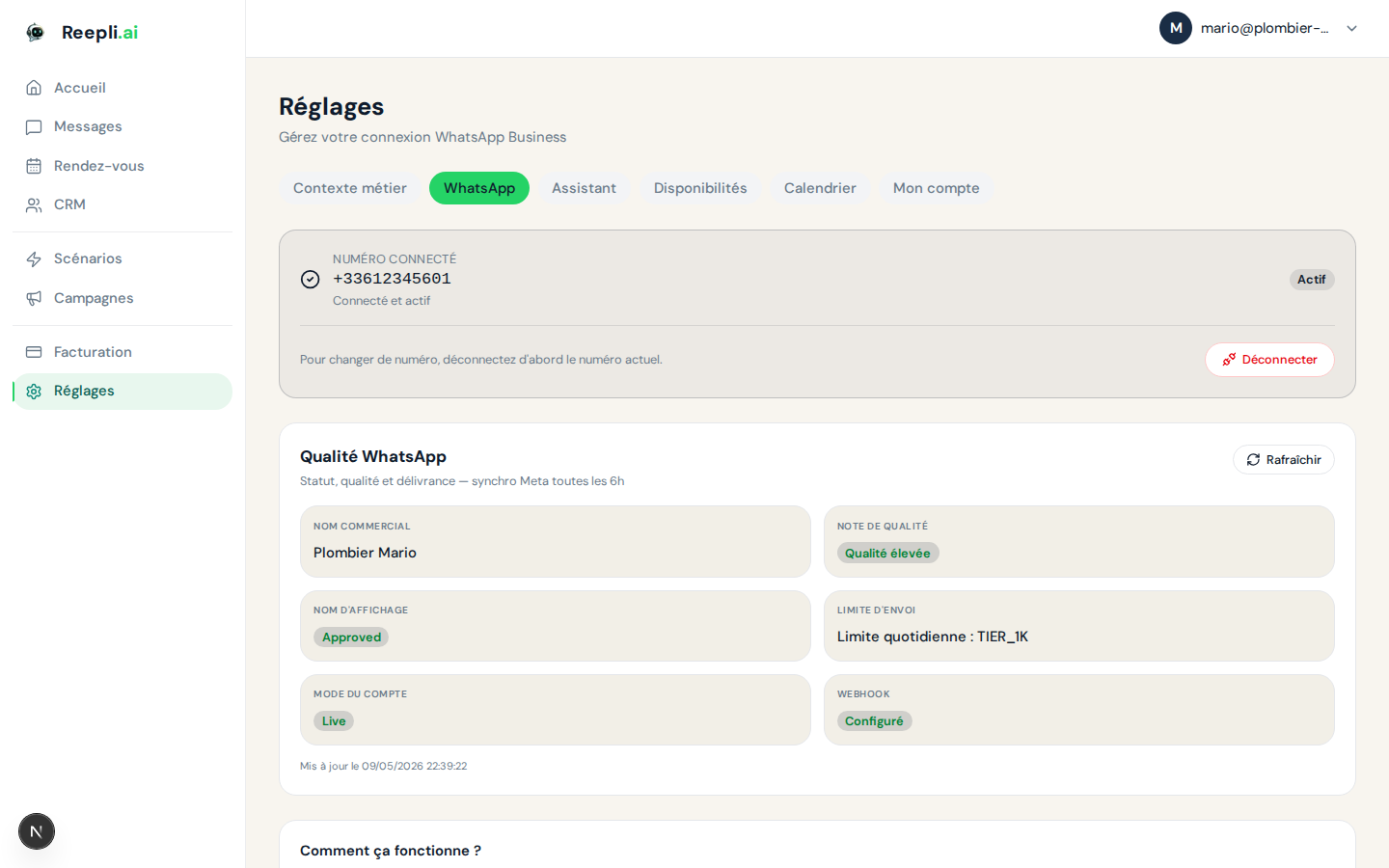
The display name goes through an approval workflow with every change. Reepli clearly shows the status on Settings → WhatsApp:
| Status | Meaning | Action |
|---|---|---|
| Approved | The name is approved and in use | Nothing to do |
| Pending | Under review by Meta | Wait 1 to 3 business days |
| Rejected | Rejected by Meta | Edit and resubmit |
When a name is rejected, Reepli shows the reason returned by Meta (incorrect formatting, prohibited term, lack of consistency with your website, etc.).
Access the profile settings
- Log in to
dashboard.reepli.ai. - Go to Settings → WhatsApp.
- Click the relevant number if you have several.
- The page displays all editable profile fields.
Configure each field
Profile photo
The photo (or logo) appears in your customers' conversation list and at the top of the open conversation.
| Specification | Value |
|---|---|
| Format | JPG or PNG |
| Minimum size | 192 × 192 px |
| Recommended size | 640 × 640 px |
| Max file size | 5 MB |
| Displayed shape | Circle (the image is cropped) |
Best practices:
- Logo centered in the frame (the edges are cropped into a circle).
- Solid, contrasting background.
- No tiny text — it will be illegible as a thumbnail.
- Consistent with your website logo.
To change it: click the current photo → select the file → adjust the cropping → save.
Description
A short text introducing your business.
- 512 characters max.
- Plain text, no formatting.
- No clickable links (these are strings displayed as-is).
Recommended structure:
- A hook sentence (your business).
- Your main products or services.
- Business hours or response times.
Business category
A single Meta category from a fixed list (Commerce, Food Service, Health, Education, etc.). It helps Meta classify your account for quality assessment.
Choose it once and rarely change it — inconsistency between the category and the actual content negatively impacts your account quality.
Physical address
Your company's address. Visible on the profile if you provide it. Optional.
- Useful for local businesses.
- Builds trust even for a 100% digital business (a registered office).
Business hours
A time range per day of the week, with the option for split shifts (morning/afternoon).
Combined with the Reepli AI assistant, business hours let the AI respond differently outside opening times or offer a callback slot the next day.
Website
Up to 2 URLs.
- Full format (
https://www.example.com). - No shortened URLs (
bit.ly,t.co). - Must point to a legitimate page, consistent with your name and your business.
Email address
A public contact email. Optional but recommended — it is a backup channel if WhatsApp is unavailable.
Display name change workflow
The display name is the only field that goes through Meta approval. Here is the cycle:
- You click Edit next to the current name.
- You enter the new name (3 to 512 characters).
- You click Submit for approval.
- The status switches to Pending.
- Meta reviews it — within 1 to 3 business days.
- The status switches to Approved or Rejected.
While the status is Pending, the old name remains displayed to your customers.
Naming rules
| Rule | Valid example | Invalid example |
|---|---|---|
| Faithfully represent the business | Boutique Élégance | Test 123 |
| Consistent with your online presence | Cabinet Dr. Martin | Unrelated to your website |
| Not in ALL CAPS | Salon Marie | SALON MARIE |
| No superfluous special characters | Pizzeria L'Italien | !!Promo!! |
| Not the word "WhatsApp" | Acme Customer Service | WhatsApp Support |
Check the result
After making changes:
- Open WhatsApp on a third-party phone.
- Search for your number and send a message.
- Tap the contact name at the top of the conversation to open the profile.
- Check the photo, name, description, address, business hours, website, and email.
The profile is visible to all WhatsApp users who have an open conversation with your number — you cannot restrict it.
Best practices
- Cross-channel consistency — use the same logo, name, and description on your website, your social networks, and WhatsApp. Any inconsistency weighs on Meta's assessment and undermines trust.
- Choose your display name well from the start — every change goes through 1 to 3 days of approval. Avoid fiddling with it through repeated submissions.
- Update your business hours for special periods — summer holidays, public holidays. Combined with the AI assistant, they let your customer get an honest answer rather than a strange message at 3 a.m.
- Submit Business Verification as soon as possible — not required to get started, but it later unlocks higher messaging volumes and the green badge.
Next steps
- Message templates — create and manage your templates.
- Approval process — how Meta approves your templates.
- Green badge (official business account) — go from the display name to the Meta-verified name.
For any questions about profile setup, contact support via the chat in the bottom right of dashboard.reepli.ai or by email at [email protected].