Message templates
WhatsApp templates (Meta templates) are structured messages that are pre-approved by Meta. They are required whenever you want to start a conversation outside the 24-hour window — that is, whenever you want to send a message to a contact who has not written to you recently.
This article explains the three template categories, how Reepli makes your life easier via automatic import, and how to create a custom template if needed.
When do you need a template?
| Situation | Template required? |
|---|---|
| The customer has just written to you (24-hour window open) | No — you reply in free text |
| You start the conversation, or the window is closed | Yes — free messages are rejected by Meta |
| You send a campaign to 500 contacts | Yes — a Meta-approved template |
| You send a login OTP code | Yes — an authentication template |
In practice, as soon as a message goes out without a message from the customer having been received in the previous 24 hours, it's a template.
Anatomy of a template
A Meta template can contain up to 4 components:
- Header (optional): text (60 characters), image, video, or document.
- Body (required): up to 1024 characters, with variables
{{1}},{{2}}… - Footer (optional): 60 characters, no variable.
- Buttons (optional, up to 3): phone call, URL link, quick reply, or a "copy code" button.
Each variable must be accompanied by an example value at submission, to help Meta understand its use.
The three Meta categories
Utility
Transactional messages tied to a concrete customer action.
| Aspect | Detail |
|---|---|
| Use | Order confirmation, delivery update, appointment reminder, payment alert |
| Relative cost | Intermediate |
| Restriction | Must be tied to a real transaction or interaction |
| Approval | Standard review, often fast |
Authentication
Identity verification messages.
| Aspect | Detail |
|---|---|
| Use | OTP codes, 2FA verification, password reset |
| Relative cost | The lowest |
| Restriction | Strict format imposed by Meta |
| Approval | Simplified workflow |
Marketing
Promotional or engagement messages.
| Aspect | Detail |
|---|---|
| Use | Offers, launches, newsletters, follow-ups |
| Relative cost | The highest |
| Restriction | Must include an opt-out mechanism (e.g., a STOP button) |
| Approval | Stricter review |
Submitting a marketing template in the utility category to save on cost is always rejected by Meta and degrades your account quality. Not worth it.
The Reepli auto-import + Meta library
Reepli automates the availability of templates via two mechanisms:
When your account is connected
At the exact moment you confirm the connection, Reepli:
- Retrieves all the templates already approved on your account (if there were any, for example with a previous provider).
- Imports the Meta library catalog — the 147 pre-approved templates made available by Meta: order confirmation, appointment reminder, OTP, and more.
You land on the templates page with a library already ready to use.
Filtering by language
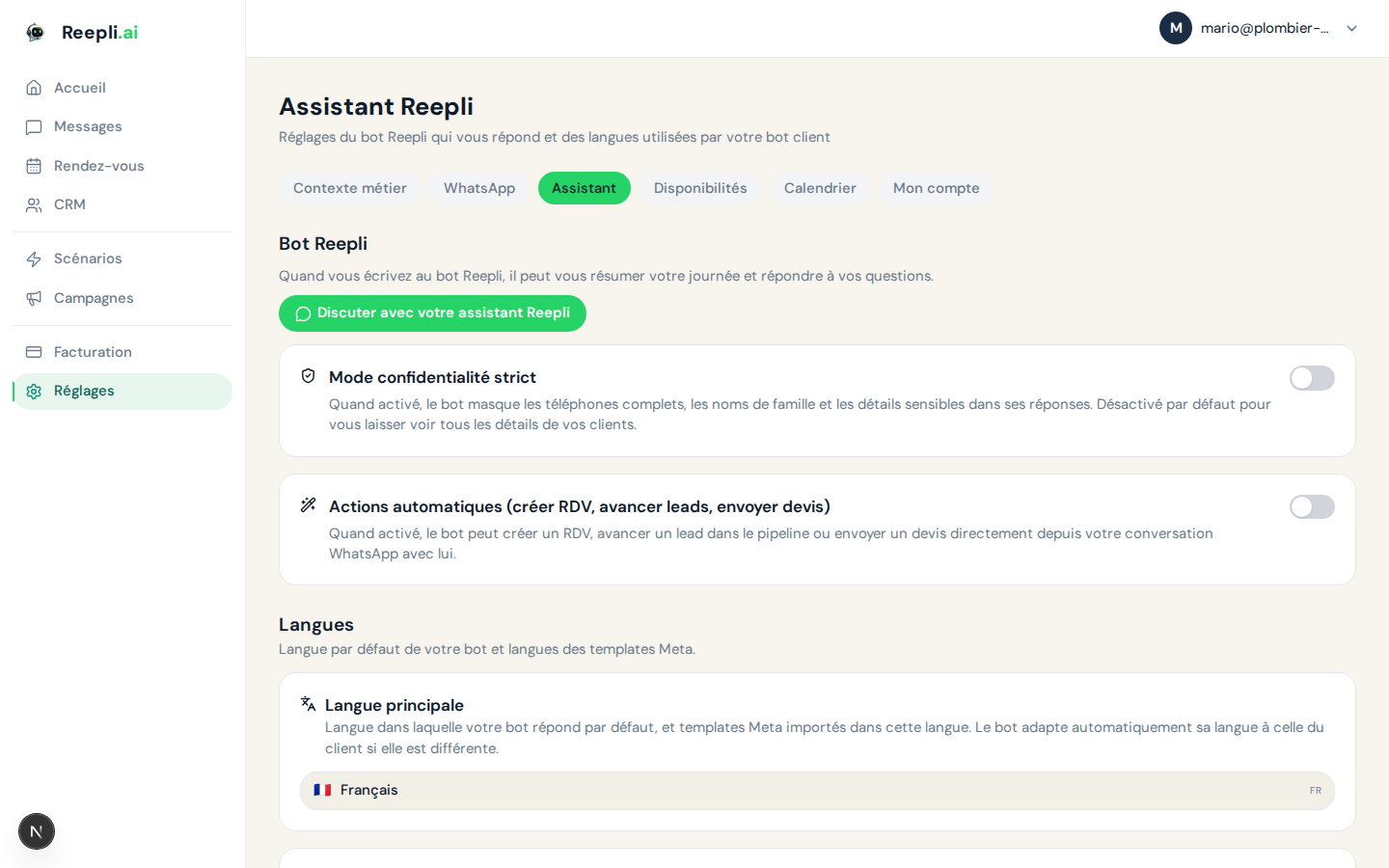
You choose the active languages in Settings → Assistant. Only templates in one of these languages are imported and usable.
To change the active languages:
- Go to Settings → Assistant.
- The Template languages section.
- Check/uncheck the desired languages.
- Save. Reepli runs a filtered import again at the next refresh.
Use an existing template
There are two places where you will use a template:
| Place | Use case |
|---|---|
| Messages (Inbox) | Start a conversation or follow up with a contact whose 24-hour window is closed |
| Campaigns → New campaign | Send a broadcast to multiple contacts |
In both cases, the template must have the Approved status. You browse the list, select the template, fill in the variables (static or dynamic, pulled from the contact's fields), and send.
Create a custom template
If the Meta library catalog does not cover your specific need:
Step 1 — Access the creation page
- Go to the WhatsApp templates admin page.
- Click Create a template.
Step 2 — Metadata
| Field | Format | Example |
|---|---|---|
| Name | lowercase, numbers, underscores | order_confirmation |
| Category | Utility / Authentication / Marketing | Utility |
| Language | ISO code | fr |
Step 3 — Header (optional)
| Type | Description |
|---|---|
| Text | Short title with a possible variable ({{1}}) |
| Image | JPG/PNG max 5 MB |
| Video | MP4 max 16 MB |
| Document | PDF max 100 MB |
Step 4 — Body (required)
Structured text, up to 1024 characters. Use numbered variables and provide an example for each.
Bonjour {{1}},

Votre commande n°{{2}} a bien été confirmée.

Montant total : {{3}}
Livraison estimée : {{4}}

Merci de votre confiance !
Available formatting: *bold*, _italic_, ~strikethrough~, `code`.
Step 5 — Footer (optional)
60 characters, no variable. Typical: "Reply STOP to unsubscribe".
Step 6 — Buttons (optional, max 3)
| Type | Use | Example |
|---|---|---|
| Call | Phone number | "Call us" |
| URL link | Opens a page | "View my order" |
| Quick reply | Clickable text | "Confirm" / "Cancel" |
| Copy code | Authentication OTP | "Copy code" |
Step 7 — Submit
Click Submit for approval. The template appears in the list with the Pending status. Meta returns a status within a few minutes to 24 hours (sometimes 48 h for Marketing).
Template statuses
| Status | Meaning |
|---|---|
| Pending | Under review by Meta |
| Approved | Usable immediately |
| Rejected | Non-compliant — see the reason and resubmit a corrected version |
| Paused | Temporarily paused by Meta (insufficient quality) |
| Disabled | Permanently disabled |
Edit or delete a template
- Edit: editing is possible but the template goes back to Pending. Meta limits this to about 10 edits per month.
- Delete: permanent deletion. If the template is used in a scheduled campaign or an AI scenario, check the references first.
Best practices
- Use the Meta library first — 147 pre-approved templates, nothing to submit, statistically high-performing. Before creating a custom template, check whether an equivalent exists.
- Be precise in your variable examples —
{{1}}="Marie", not"first name". Meta is more likely to reject vague examples. - Categorize correctly — the temptation is to put Marketing under Utility to pay less. The result: rejection, and a quality drop that costs more in the end.
- Limit to one topic per template — a message that mixes order confirmation and a flash promo will be rejected under both Utility and Marketing.
- Test on yourself — send a template to your own number before broadcasting it to 500 contacts. Check the rendering, the variables, the buttons.
Next steps
- Approval process — details of the Meta workflow.
- Messaging limits — the 24-hour window and the daily limit.
- Create a campaign — use a template for mass sending.
For any questions about templates, contact support via the chat in the bottom right of dashboard.reepli.ai or by email at [email protected].