Filters and contact targeting
Reepli has no separate segment library: your filters are built right where they're used — either in the contact list to explore your base, or in the campaign creation form to build the audience of a send. This article describes the available criteria and how to combine them.
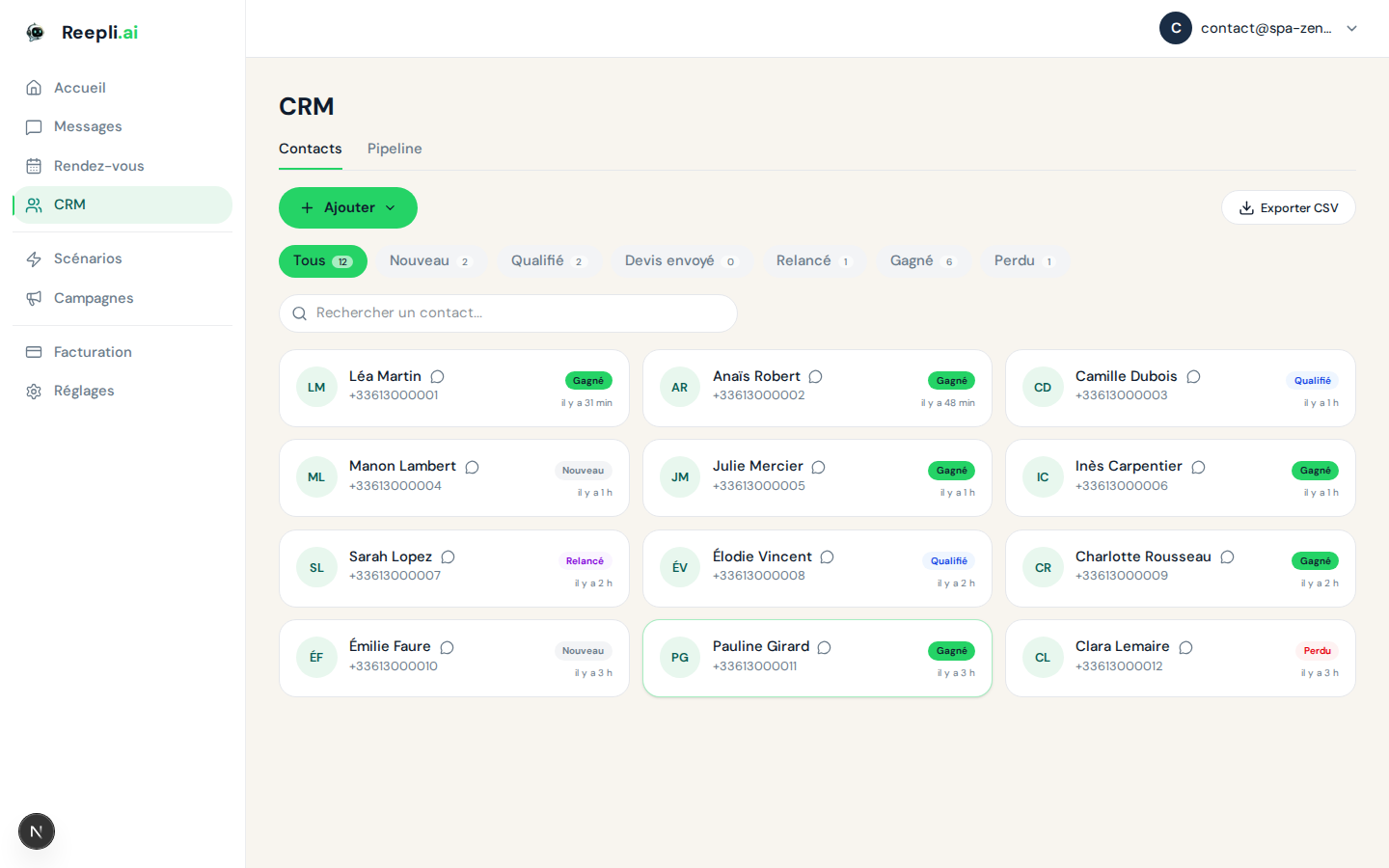
The Reepli model: no fixed segments
On most CRM tools, you create named, reusable "segments." Reepli has deliberately chosen a lighter model:
| Location | Goal | Available filters |
|---|---|---|
| Contact list | Explore, find, export | All filters |
| Campaign creation | Choose the recipients of a WhatsApp send | All filters + cost estimate |
Filters are not saved as a named "segment" — they are rebuilt on the fly whenever needed. This avoids drift (a segment whose rules date back 18 months) and keeps a single source of truth: your contact base.
Available criteria
Contact stage
Filter on the stage (see the 6-stage pipeline).
- New — first contact, intent not qualified.
- Qualified — interest confirmed.
- Quote sent — quote delivered.
- Followed up — at least one follow-up after the quote.
- Won — deal won.
- Lost — lost or abandoned.
You can select several stages at once (for example Qualified + Quote sent to target live opportunities).
Intent score
The lead score (0–100) is filterable by threshold:
- Hot leads: score ≥ 70.
- Warm leads: 40 ≤ score < 70.
- Cold leads: score < 40.
Last activity
The date of the last customer message lets you target by freshness:
- Contacts who wrote in the last 7 days.
- Contacts who haven't written in 30 days (dormant).
- Contacts who have never replied.
Labels
Any label attached to your contacts can be used as a filter:
- Has the label: the contact has this label.
- Does not have the label: they don't have it.
- Multiple combinations possible (e.g.
vipANDparis).
Identity
- Free search on name, number, email.
- Useful for finding a specific contact before a manual edit.
Combining criteria
All filters stack with a logical AND: a contact only appears in the filtered list if it satisfies every selected condition.
Example — targeting dormant quotes to follow up manually:
- Stage ∈ { Quote sent, Followed up }
- Last customer message > 7 days
- Follow-up counter < 2
This filter gives you the list of contacts who received a quote, haven't replied for a week, and whom the AI hasn't yet followed up with twice.
The filter form does not offer "OR" logic between criteria, for the sake of simplicity. If you need a union (for example "contacts in Paris OR in Lyon"), build two successive filters or use the CSV export and then a spreadsheet.
Using filters to build a campaign
The main use of filters is to build a campaign's audience. The campaign creation form offers the same filters as the contact list, plus a real-time cost estimate (based on the number of recipients and the template category).
- Go to Campaigns then New campaign.
- Choose an approved Meta template.
- Audience step: apply the filters you want (stage, labels, last activity, etc.).
- The recipient counter and the estimated cost update with each adjustment.
- Continue the form: payment pre-authorization, scheduling, sending.
The full walkthrough is documented in Create a broadcast.
Typical use cases
Wake up dormant leads
Filter on last customer message > 30 days and stage ∈ { Qualified, Quote sent }, then send a follow-up template with a gentle offer.
Announce an event to your existing customers
Filter on stage = Won, and send a utility template (a workshop reminder, a store opening, etc.).
Clean up the base
Filter on stage = Lost AND last customer message > 6 months, then export to CSV for external archiving before a possible deletion.
Simple geographic targeting
If you've tagged your contacts with a city label (paris, marseille), a simple label filter is enough. No need for a dedicated segment.
Exporting a filtered list
Once your filters are applied in the contact list, the Export button in the top right produces a CSV of the entire filtered list — useful for archiving, a GDPR audit, or import into another tool.
Best practices
- Prefer labels over complex filters — if you find yourself rebuilding the same filter every day, create a label instead (
relance-mai,salon-2026) and apply it. - Never target Lost contacts — except in a specific scenario (a major change to your offering, a birthday), a Lost contact should stay Lost. The risk of being reported as spam is real.
- Check the counter before sending — if the campaign form shows 4,200 recipients when you expected 200, your filters are too broad. Refine before committing the cost.
- Respect frequency — a contact should not receive more than 4 to 5 campaigns per month, all types combined.
Related articles
For any question about targeting your contacts, contact support via the chat at the bottom right of the app or by email at [email protected].