Contact record fields
Every contact in Reepli is represented by a record, fed by incoming WhatsApp messages, by your manual input, and by the AI assistant. This article documents all of the available fields, their source, and how they are updated.
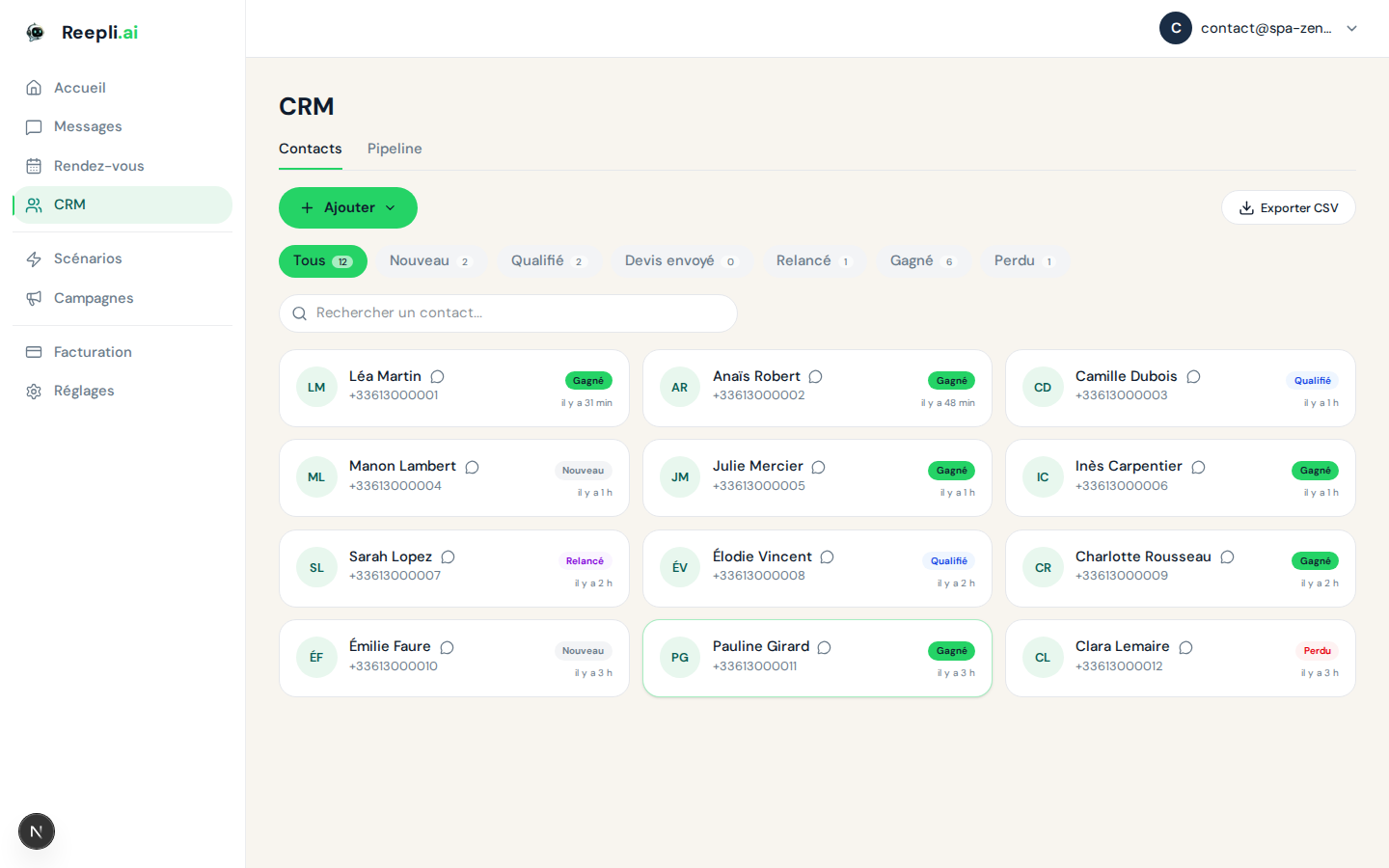
Overview
A contact record is made up of four families of information:
| Family | Example fields | Main source |
|---|---|---|
| Identity | Name, number, email | Manual input, CSV/vCard import, WhatsApp profile |
| CRM | Stage, score, AI summary | AI assistant, manual adjustments |
| Activity | Date of the last customer message, follow-up counter | Received messages, automatic follow-ups |
| Organization | Labels, internal notes | Manual input |
Identity fields
Name
The contact's display name in the Inbox, the list, and the Kanban. Initialized from the WhatsApp profile if available (the name the contact set up on their phone), otherwise left blank until you fill it in.
- Editable directly from the contact record.
- Shown in uppercase in the conversation's top bar.
Phone number
A number in international format with + and country code (for example +33612345678).
- The contact's unique identifier in Reepli — two contacts cannot share the same number.
- Not editable once the record is created. If the number changes, create a new contact.
Email
An optional email address. Lets you find the contact in global search and enriches the CSV export.
- Not sent to WhatsApp (never shown to the person you're chatting with).
- Useful if you combine WhatsApp with an external email channel.
CRM fields
Contact stage
The contact's current position in the 6-stage pipeline: New, Qualified, Quote sent, Followed up, Won, Lost.
- Updated automatically by the AI assistant when it detects a conversational signal (expressed intent, quote sent, refusal, etc.).
- Editable manually at any time from the record or the Kanban.
Lead score
An intent score from 0 to 100, calculated by the AI assistant based on the quality of the signals captured (urgency, stated budget, how specific the need is, message frequency, and so on).
- Shown as a small colored gauge next to the name in the list.
- Used as the default sort criterion in the Hot leads view.
AI-generated customer summary
A conversational summary regenerated periodically, in the background, from the latest messages exchanged.
- Lets you recall a contact's context in two seconds without re-reading the whole conversation.
- Not editable by hand; it is rewritten at the next refresh.
Activity fields
Date of the last customer message
Timestamp of the last incoming message (from the contact to you). Updated automatically with each message received.
- An essential criterion for identifying dormant contacts.
- Used as the basis for calculating the 24 h WhatsApp service window.
Counter of follow-ups sent to a dormant customer
Incremented each time an automatic follow-up goes out to this contact. Helps you avoid endlessly chasing someone who no longer replies.
- Reset to 0 as soon as the contact replies.
- Once this counter goes beyond 2 or 3, consider moving to Lost.
Labels
Reepli relies on labels to categorize contacts beyond the pipeline stage. A label is free-form, colored, and can be added or removed from the contact record.
- Examples:
vip,salon-2026,partenaire,b2b. - Visible in the contact list and usable as a filter when building a campaign's audience.
Add a label
- Open the contact record.
- In the Labels section, click Add.
- Choose an existing label or type a new name to create one.
- Confirm — the label appears immediately.
Remove a label
Click the cross next to the label on the record to detach it from the contact.
Internal notes
You can add free-text notes to a record to share context with your team (or with yourself a week from now).
- Added via the Notes tab of the record.
- Shown with author and date.
- Not sent to the contact, never visible on the WhatsApp side.
Fields populated at import
When you import a CSV or vCard file, only the following fields are populated at import:
| Field | CSV | vCard |
|---|---|---|
| Phone number | Required | Required |
| Name | Optional | Taken from the full name |
| Optional | Taken from the email field | |
| Labels | Optional via a dedicated column | Not imported |
The CRM fields (stage, score, customer summary) stay at their default value (New, 0, empty) and will be populated by the AI as soon as the first conversation starts.
Editing a contact
- Open the record from the contact list.
- Click the field to edit (name, email, stage, labels, etc.).
- The change is saved automatically.
- An entry appears in the History tab with the timestamp and the author (you or the AI).
The number is the contact's unique identifier on the WhatsApp side and cannot be edited after creation. If the number has genuinely changed, create a new contact and keep the old one as an archive.
Best practices
- Let the AI work — the stage, score, and customer summary are designed to be updated automatically. Only overwrite them by hand when you have information the conversation doesn't reflect.
- Use labels for business attributes — lead source (
salon,pub-meta,bouche-oreille), segment (vip,partenaire), product of interest. The stage stays reserved for the position in the pipeline. - Fill in the email as soon as you can — it makes export and deduplication far more reliable the day you switch campaign or accounting tools.
Related articles
A question about the fields on a record? Support is reachable via the chat at the bottom right of the app or by email at [email protected].