Import and export contacts
Reepli lets you populate your contact base in bulk via two formats: CSV (the most common for migrating from another tool) and vCard (handy for transferring a phone's address book). Both formats apply the same deduplication rules.
Bulk import is available starting from the Starter plan; beyond a certain monthly volume, it moves up to the Pro or Business plans. The import page shows the remaining quota.
CSV format
Expected columns
The first row of the file must contain headers. The recognized columns are:
| Column | Required | Format | Example |
|---|---|---|---|
phone_number | Yes | International format with + and country code | +33612345678 |
name | No | Free text | Marie Dupont |
email | No | Valid email | [email protected] |
labels | No | Labels separated by ; | vip;salon-2026 |
Unknown columns are silently ignored (so you can import a larger CSV export without cleaning it up first).
Example file
phone_number,name,email,labels
+33612345678,Marie Dupont,[email protected],vip;salon-2026
+33698765432,Jean Martin,[email protected],
+212661234567,Karim Benali,,partenaire
Validation rules
- Encoding: UTF-8 required. Files in
windows-1252produce corrupted accents in names. - Numbers: must start with
+followed by the country code. Numbers without+, or in scientific notation (an Excel artifact), are rejected. - Duplicates: if a contact already exists with the same number, the name and email are updated (empty CSV fields do not overwrite existing values), and the CSV's labels are added to those already present.
- Size: 10 MB maximum per file, roughly 50,000 rows.
Procedure
- Open Contacts in the side menu.
- Click Import a CSV.
- Drag and drop your file or click to select it.
- Reepli shows a preview of the first 10 parsed rows.
- Confirm: the import starts in the background.
- The final report shows the number of contacts created, updated, and the list of rows with errors.
+Excel has the annoying habit of removing the + or flipping a long number into scientific notation. Before exporting to CSV from Excel, format the phone_number column as Text (right-click the column → Format Cells → Text). Otherwise, export from Google Sheets or LibreOffice.
vCard format (.vcf)
vCard import is the convenient option when you want to bring an entire address book over from an Android phone or iPhone.
Recognized fields
| vCard property | Reepli field |
|---|---|
TEL (with a + prefix or explicit country code) | Phone number |
FN (full name) | Name |
EMAIL |
Other properties (ADR, ORG, BDAY, etc.) are ignored — Reepli does not store those fields.
Typical use case
- On your phone, open the Contacts app.
- Select all (or a subset) then Export as vCard.
- Email the
.vcffile to yourself. - On the dashboard, Contacts → Import a vCard and drop the file.
Validation rules
- Multiple contacts per file: yes, one
.vcffile can contain dozens of contacts. - Numbers without an international country code are rejected (Reepli does not try to guess the local code).
- Labels are not imported via vCard — use CSV if you need to attach labels at import.
Import behavior
For each row processed (CSV or vCard), Reepli applies the following logic:
- Search on the phone number (international format).
- If a contact already exists: update (name and email filled in if they were empty, labels merged).
- Otherwise: create a new record with the New stage and a score of 0.
- The date of the last customer message stays empty until the contact has written to you from WhatsApp.
The CRM fields (stage, score, customer summary) are not populated at import — they will be updated automatically by the AI as soon as the first conversation starts.
Common errors
| Error | Cause | Solution |
|---|---|---|
| Invalid number | Number without + or with spaces / parentheses | Reformat to strict international |
| Encoding error | File in windows-1252 or latin1 | Re-save as UTF-8 |
| File too large | CSV > 10 MB | Split into several files |
| Invalid email | Malformed address | Fix it or leave the field empty |
| Quota exceeded | Monthly cap reached | Wait for renewal or move up to the higher plan |
The rows with errors are downloadable in a separate CSV at the end of the import: fix that file and re-import it, without touching the valid rows.
Exporting your contacts
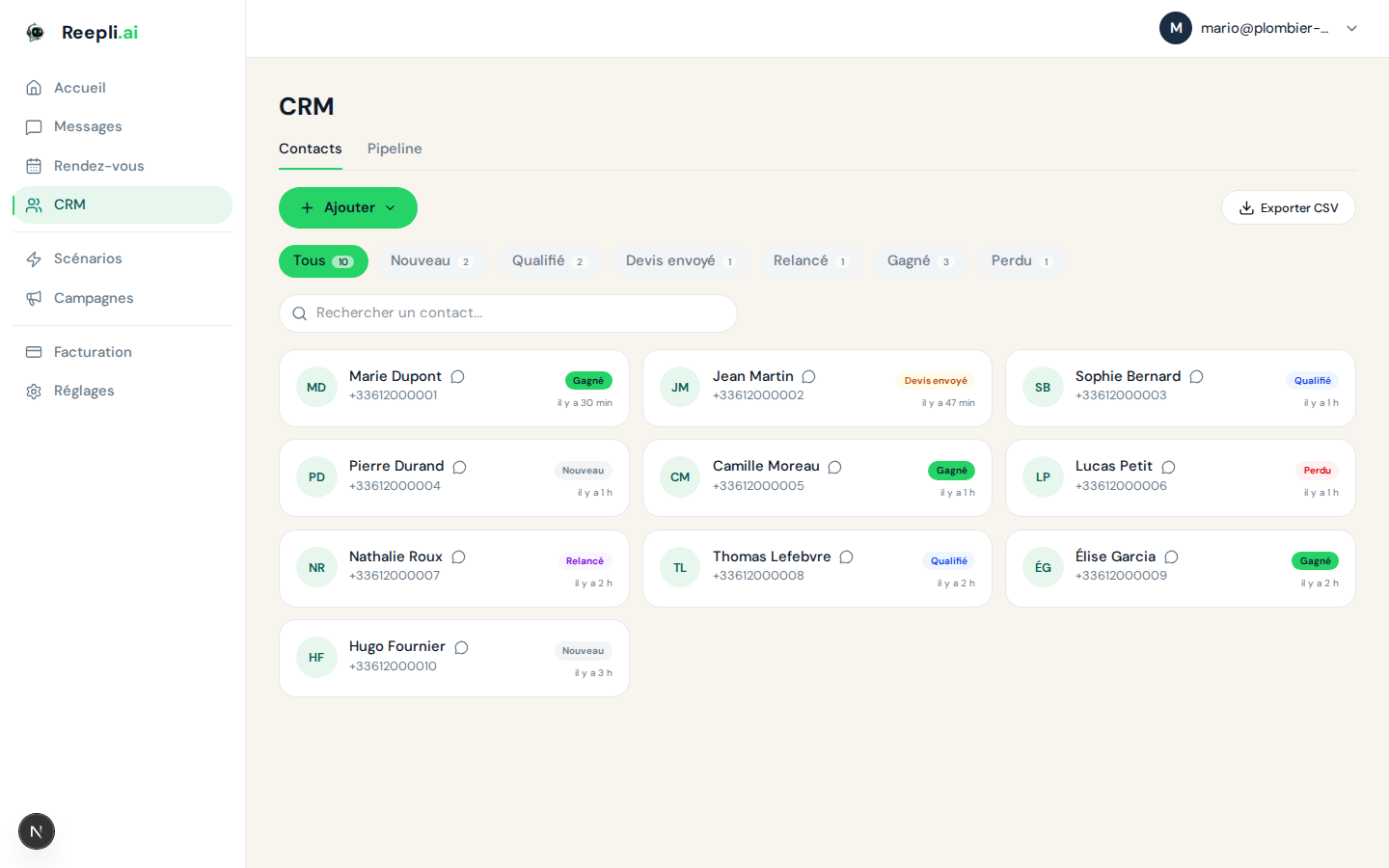
CSV export is available directly from the Contacts list.
- Apply your filters (stage, labels, search, etc.) if you want to export only part of the base.
- Click Export in the top right.
- The CSV file is generated and downloaded.
Columns included in the export
- Phone number
- Name
- Contact stage
- Lead score
- Date of the last customer message
- Labels (separated by
;) - Creation date
The export is a snapshot at the moment of the click — it is neither scheduled nor recurring. For regular backups, export manually at a regular cadence.
Migrating from another tool
From HubSpot, Pipedrive, or a classic CRM
- Export to CSV from the source tool.
- Rename the columns to match:
phone_number,name,email,labels. - Check the number format (strict international).
- Import into Reepli.
From the WhatsApp Business App
The WhatsApp Business App does not offer a native contact export. The most direct method:
- On the phone hosting the WA Business account, export your phone address book as
.vcf. - Email the file to yourself.
- Import into Reepli via Contacts → Import a vCard.
Only contacts who are actually on WhatsApp can be reached via the channel — the others will stay in the base but with no conversation possible until they create a WhatsApp account.
Best practices
- Test with a small sample — import 10 rows first, check the result in the list, then run the full import.
- Label at import — add a label like
import-2026-05orsalon-cdgto the whole batch. This lets you find and purge the import if needed. - Respect consent — only import contacts who have explicitly agreed to be contacted via WhatsApp. A mass import of cold prospects quickly degrades your Meta quality score.
- Back up before overwriting — if you re-import an updated CSV, export the current base first to keep a record.
Related articles
If you run into an import issue (encoding, validation, quota), contact support via the chat at the bottom right of the app or by email at [email protected].