Configuring Scenarios
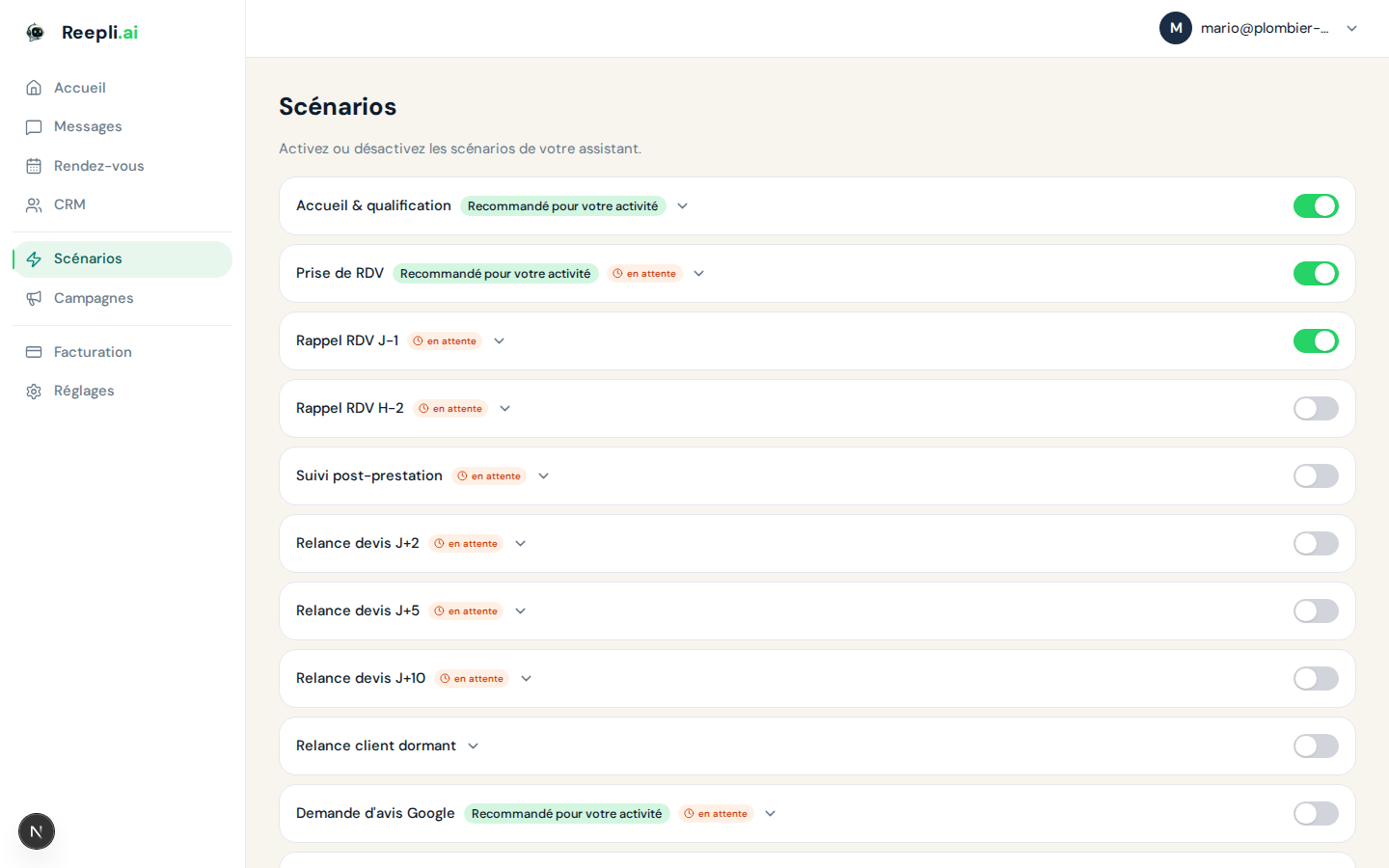
Reepli has no drag-and-drop visual builder. Instead, you configure your chatbot's behavior through a list of behaviors that you activate or deactivate with a click. It's faster, more robust, and the assistant adapts naturally to your customers' language variations.
visual-builder URLThe address of this article — /chatbot/visual-builder — is a legacy of the product's first version. Reepli has since dropped the "visual builder" approach in favor of an AI + behaviors model. We keep the URL so as not to break existing links, but the screen you'll find in the dashboard is called Scenarios.
Where to find the page
In the dashboard's side menu, click Scenarios.
There you'll find the list of all the behaviors available for your plan, each with an activation toggle.
Anatomy of a behavior
Each behavior appears as a card in the list. A card contains:
| Element | Role |
|---|---|
| Label | Displayed name (e.g. "Appointment booking"). |
| Description | Short summary of what the behavior does. |
| Audience | Customers (your customers/leads) or support (Reepli product support, not visible on your side). |
| Status | Activated / Deactivated. Click the toggle to switch. |
| Plan badge | Indicates the minimum plan required if the behavior is locked. |
| "Recommended" badge | Appears if the business you declared at signup matches. |
| Associated Meta template | When the behavior relies on a pre-approved template (reminder, follow-up…), the template name appears here. |
The full catalog
Here are the behaviors intended for customers:
Behaviors triggered by an incoming message
- Welcome and qualification. The assistant welcomes a new contact, asks the useful questions (need, urgency, geographic area) and guides what follows.
- Appointment booking. The assistant offers slots, confirms the selection with the customer, then books the appointment in Google Calendar.
Automatic behaviors (no incoming message)
- D-1 appointment reminder. Sent the day before an appointment.
- H-2 appointment reminder. Sent two hours before an appointment.
- Post-service follow-up. Sent a few hours after the end of an appointment.
- Quote follow-ups (D+2, D+5, D+10). Sent progressively after a quote goes unanswered.
- Dormant customer. Automatic send to re-engage customers who have been silent for too long.
- Review request. Solicits a Google review after a successful service.
- 12-month loyalty. Anniversary message for your long-standing customers.
You may see behaviors intended for Reepli product support (pre-sales, knowledge base). They only apply to Reepli's internal bot for its own customers, not yours. You can ignore them.
Activating a behavior
- Open the Scenarios page.
- Locate the behavior to activate in the list.
- Click the toggle on the right of the card.
- The change is saved immediately — no need for a "Save" button.
The assistant takes the new behavior into account from the next incoming message or the next automatic run concerned.
If you deactivate D-1 appointment reminder or H-2 appointment reminder, reminders will no longer be sent for upcoming appointments. Remember to notify your customers through another channel if you want to temporarily stop automatic reminders.
What your plan unlocks
The available behaviors depend on your plan. A lock appears on locked cards with a call to action toward upgrading.
| Plan | Unlocked behaviors |
|---|---|
| Trial / Starter | Welcome & qualification, Appointment booking, D-1 appointment reminder |
| Pro / Business | All customer behaviors |
The Business plan additionally unlocks the creation of custom behaviors on request from the Reepli team.
Recommended by business type
On first login (or via the Recommend based on my business button), Reepli pre-checks the behaviors relevant to your line of business. The recommendations rely on the Google Business category you selected at signup:
- Hairdressing / beauty / wellness: Welcome & qualification, Appointment booking, D-1 appointment reminder, H-2 appointment reminder, Post-service follow-up, Review request.
- Tradespeople / construction: Welcome & qualification, Appointment booking, Quote follow-ups (D+2 and D+5), Dormant customer re-engagement.
- Restaurants: Welcome & qualification, Appointment booking, H-2 appointment reminder, Review request.
Recommendations never activate a behavior you have manually deactivated. They only add relevant suggestions; they remove nothing.
Adapting the behavior
You don't configure the content message by message. You steer it by acting on two levers:
- Your business context in the assistant settings — services, FAQ, rules, free-form instructions. This is what lets the assistant offer the right slots, the right prices, the right tone.
- Your availability in the dedicated settings — opening days and slots for appointment booking.
For writing business rules, see AI logic and rules.
Verifying that a behavior works
The simplest way is to write to the connected WhatsApp number yourself from a personal phone:
- "Hello, I'd like to book an appointment" → should trigger appointment booking.
- "How much is a cut?" → should trigger welcome & qualification with a pricing answer pulled from your service catalog.
For a complete procedure, see Testing your chatbot.
Special cases
Behavior active but no reply
Check in order:
- The WhatsApp number is properly connected (WhatsApp settings).
- The business context is not empty (assistant settings).
- The conversation is not in human mode (look at the indicator on the Messages page).
- Your monthly message quota is not exceeded (Billing page).
The behavior triggers at the wrong time
Rewrite your rules in the assistant settings, being more explicit. For example:
"Never offer an appointment before 9 a.m. or after 7 p.m. Saturday is open by appointment only. Sunday is closed."
The assistant follows these instructions on the next message.