Manage Your Subscription
Everything is handled from the Billing page, via the Stripe billing portal. This page explains each operation: viewing your plan, upgrading, downgrading, cancelling or reactivating.
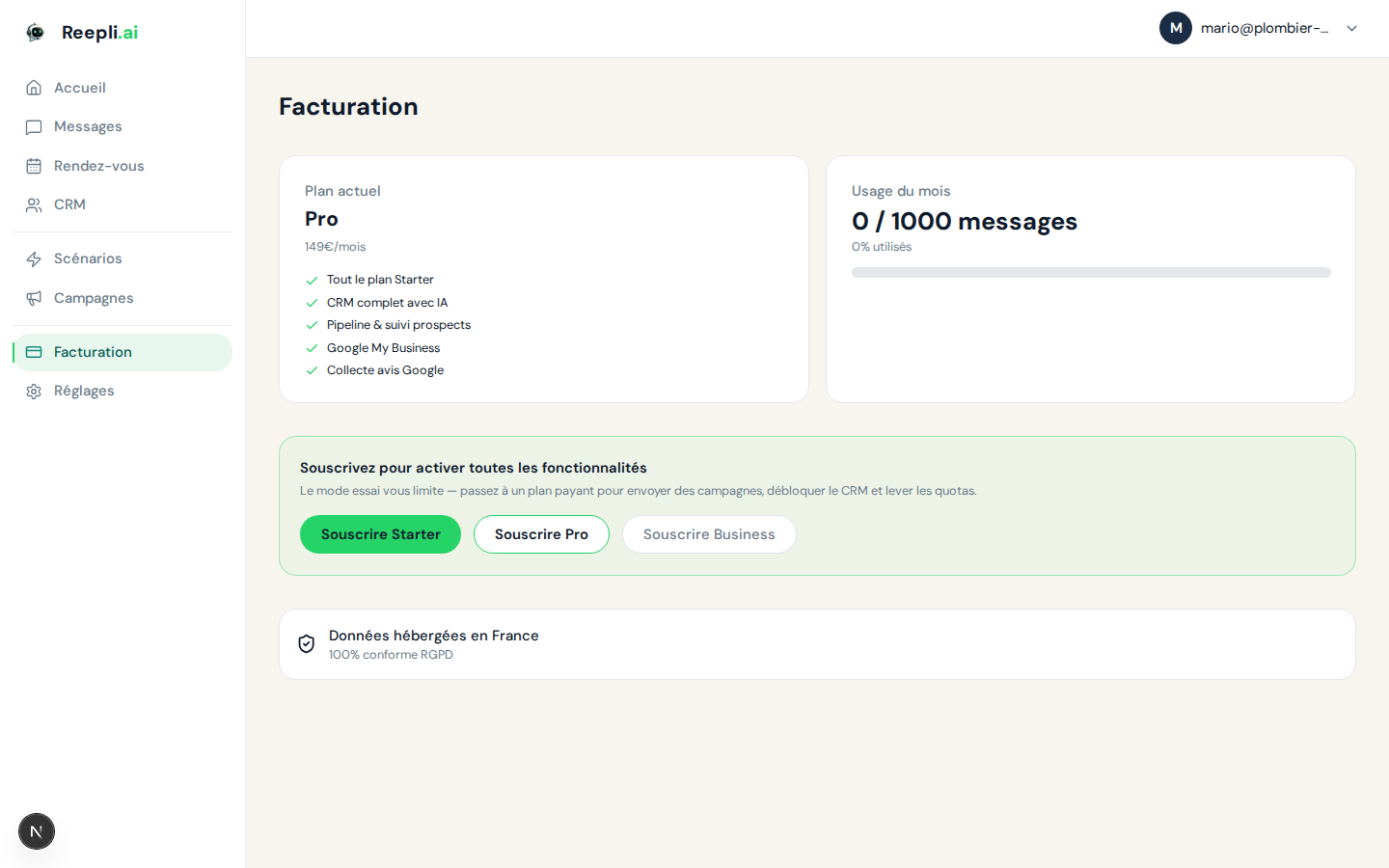
View your current plan
- Log in to dashboard.reepli.ai.
- Click Billing in the side menu.
- At the top of the page, you'll see:
- Plan name (Trial, Starter, Pro or Business)
- Monthly price
- Next renewal date
- This month's usage counter (messages, AI usage)
Accessing the billing portal
All subscription changes go through the Stripe billing portal:
- On the Billing page, click Manage my subscription.
- A new window opens, already authenticated as you.
- There you'll find: plan changes, payment methods, invoices, cancellation.
Reepli delegates all billing to Stripe: it's the same infrastructure used by thousands of companies. Your card details never pass through Reepli's servers.
Upgrade
Why upgrade?
Move to a higher plan to get:
- A larger usage allowance (messages, AI usage)
- More AI features (CRM, Google My Business, full scenarios)
- Broadcast campaigns (Pro and Business)
- Multi-user access and custom scenarios (Business)
See Plans and pricing to compare.
Steps
- On the Billing page, click Manage my subscription.
- In the portal, click Upgrade.
- Choose the new plan (Pro or Business).
- The portal displays a summary: proration for the remaining period, total to be charged today.
- Confirm. The charge is immediate.
How proration is calculated
Proration is calculated automatically based on the days remaining in the cycle. A concrete example:
- Current subscription: Starter at €79/month, 15 of 30 days already elapsed.
- Credit for the 15 remaining days: €79 × (15/30) = €39.50.
- New plan: Pro at €149/month, 15 days remaining.
- Cost for the 15 days: €149 × (15/30) = €74.50.
- Amount charged today: 74.50 − 39.50 = €35.00.
At the next renewal, you'll be charged the full €149.
The upgrade takes effect as soon as the payment is confirmed. You get access to the new features and the new usage allowance immediately.
Downgrade
Before downgrading
Make sure your current usage is compatible with the lower plan:
| Item to check | Action if exceeded |
|---|---|
| Message volume | No action needed — the service continues (fair use) |
| Active AI scenarios | Disable Pro/Business scenarios |
| Running campaigns | Wait for them to finish (Pro/Business only) |
| Connected calendars | Reduce to 3 max if you move back to Pro, to 1 if Starter |
| Multi-user | Remove secondary accounts if you leave Business |
Steps
- On the Billing page, click Manage my subscription.
- In the portal, choose Update plan.
- Select the lower plan.
- Confirm.
The downgrade only takes effect at the next billing cycle. You keep the current plan's features until the end of the current cycle. No refund is issued for the remaining period.
Effects of downgrading
| Item | Behavior |
|---|---|
| Features | Reduced to the new plan on the effective date |
| Contact/conversation data | Kept in full |
| Scenarios not available in the new plan | Disabled automatically |
| Excess calendars | The first stays active, the others are disconnected |
| History | Kept without limit |
Cancelling your subscription
Before cancelling
If Reepli isn't right for you, talk to us first: a plan change or an adjustment can resolve most situations. Contact us.
Cancellation steps
- On the Billing page, click Manage my subscription.
- In the portal, scroll down to Cancel subscription.
- Confirm. The portal may ask for a reason (helpful to us, but optional).
Consequences
| Item | Behavior |
|---|---|
| Access | Maintained until the end of the current cycle |
| Data | Kept for 30 days after expiration |
| Ongoing conversations | Continue until the end of the cycle |
| Connected WhatsApp number | Disconnected from Reepli (reconfiguration needed if you return) |
| Google calendars | Disconnected at the end of the cycle |
| Data export | Possible until the end of the cycle |
30 days after your subscription expires, your data (contacts, conversations, bot configuration) is permanently deleted. Be sure to export anything you want to keep before the end of the cycle.
Reactivation after cancellation
| When? | How? |
|---|---|
| Before the end of the cycle | Undo the cancellation from the billing portal — the subscription resumes normally |
| After the end of the cycle, within 30 days | Log back in and subscribe again — your data is restored |
| After 30 days | You must create a new account; the old data is no longer available |
Failed payment
If an invoice fails (expired card, limit reached, payment stopped), our payment provider automatically retries several times over 7 days. You receive an email with each attempt.
To resolve it:
- On the Billing page, click Manage my subscription.
- Update your card or add a new payment method.
- The pending invoice is retried automatically.
Summary of changes
| Action | When it takes effect | Billing impact |
|---|---|---|
| Upgrade | Immediate | Proration charged immediately |
| Downgrade | Next cycle | New rate at renewal |
| Cancellation | End of the current cycle | No refund |
| Reactivation | Immediate | Resumes at the chosen plan's rate |
Troubleshooting
The plan change fails
- Make sure your card is valid.
- Try another payment method from the billing portal.
- If the problem persists, contact support.
The payment is declined by my bank
- Check your balance and your limit.
- Contact your bank: some block online payments by default.
- Try another method (Apple Pay, SEPA if available in your country).