Invoices and Payment History
All your Reepli invoices are issued by our payment provider Stripe and are accessible at any time from your dashboard. This page explains where to find them, how to download them, and how to update your billing information.
Accessing invoices
- Log in to dashboard.reepli.ai.
- Click Billing in the side menu.
- Scroll down to the Invoices section.
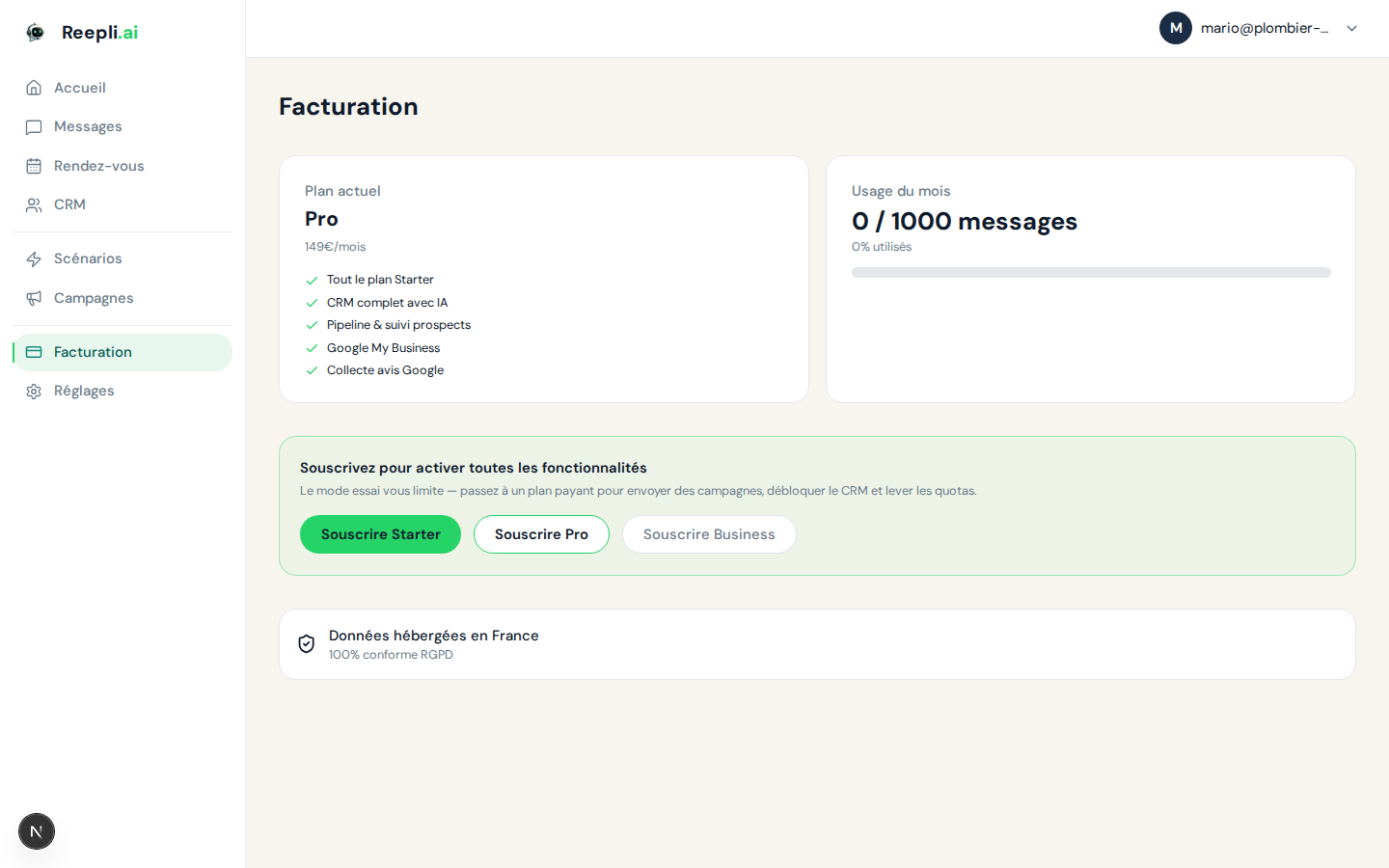
Only the workspace owner can see the invoices. If several people use the account, the invoices remain attached to the account that took out the subscription.
Invoice list
The Billing page displays your most recent invoices. For each one, you can see:
| Column | Description |
|---|---|
| Date | Date the invoice was issued |
| Description | Subscribed plan (Starter, Pro, Business) or campaign charged |
| Amount | Amount including tax, in euros |
| Status | Paid, Pending, Failed |
| Direct link to the PDF invoice |
Possible statuses
| Status | Meaning | Action |
|---|---|---|
| Paid | Payment completed successfully | Download the PDF |
| Pending | Payment being processed | Wait a few minutes |
| Failed | The payment failed | Update the payment method |
| Refunded | A refund was issued | The PDF includes the credit |
Downloading an invoice
One invoice at a time
- On the Billing page, locate the invoice you want.
- Click Download or the PDF icon on the right.
- The PDF opens in a new tab.
Multiple invoices
To retrieve several invoices (for example all of the year's invoices for accounting), use the billing portal:
- On the Billing page, click Manage my subscription.
- In the portal, go to the Billing history section.
- There you'll find all invoices, even older ones, each with a downloadable PDF.
Have your accountant use the self-service billing portal. You can invite them by forwarding the login link sent to your billing email address.
Contents of an invoice
Each PDF invoice contains:
| Section | Contents |
|---|---|
| Header | Reepli logo, invoice number, issue date |
| Issuer | Reepli's legal details (company name, address, VAT number) |
| Recipient | Your billing information |
| Line items | Breakdown of products and services (subscription, campaigns) |
| Subtotal (excl. tax) | Amount before tax |
| VAT | Rate and amount (depending on your country) |
| Total (incl. tax) | Final amount |
| Payment | Payment method used (last 4 digits of the card) and charge date |
Possible line items
An invoice may contain several line items:
- [Plan] subscription — Monthly plan (Starter, Pro, Business)
- Proration (upgrade) — Adjustment when changing plan
- Credit (downgrade or refund) — Adjustment in your favor
- WhatsApp campaign — Charge after pre-authorization for a campaign
Billing information
The information that appears on your invoices (company name, address, VAT number) can be edited in the billing portal.
Updating your information
- On the Billing page, click Manage my subscription.
- In the portal, go to the Billing information section.
- Edit:
- Company name — your company's name
- Address — full postal address
- Postal code and city
- Country
- VAT number — your intra-EU VAT number (if applicable)
- Billing email — the address invoices are sent to
- Confirm. Changes apply to your next invoice.
If you are subject to VAT and have a valid intra-EU VAT number outside France, enter it to benefit from the reverse charge. Invoices will then be issued without VAT.
Billing email
By default, invoices are sent to your Reepli account's email address. To use a different address (for example [email protected]):
- On the Billing page, click Manage my subscription.
- Go to the Billing email section in the portal.
- Change the address and confirm.
Payment method
Viewing and changing the current method
- On the Billing page, click Manage my subscription.
- Go to the Payment methods section in the portal.
- You'll see the last 4 digits of the card, its expiration date and its status.
- Click Add to register a new method, or Edit to replace it.
Adding a backup method
You can register several cards. If the primary card fails, the system automatically tries the others before reporting a failure.
You'll be notified by email when your card is approaching its expiration date. Update it before it expires to avoid any interruption.
Failed payments and retries
When a payment fails, the system follows a standard retry protocol:
| Step | Timing | Action |
|---|---|---|
| 1st attempt | Day 0 | Initial charge + notification email |
| 2nd attempt | Day 3 | New attempt + email |
| 3rd attempt | Day 5-7 | Final attempt + urgent email |
| Suspension | Day 10+ | Account set to read-only until resolved |
Resolving a failed payment
- Click the link in the email (direct payment), or
- On the Billing page, click Manage my subscription and update the card. The pending invoice is retried automatically.
Refunds
Refund policy
| Situation | Refund |
|---|---|
| Reepli billing error | Full refund |
| Double billing | Refund of the duplicate |
| Cancellation mid-cycle | No refund (access maintained) |
Reepli is a monthly, no-commitment service: cancelling before the next renewal date avoids any further charges, but no retroactive refund is issued for the unused days of the current cycle.
Requesting a refund
- Contact support.
- Provide the number of the invoice concerned.
- Describe the reason for your request.
- We process your request within 5 business days.
Refunds are issued to the original payment method. The time it takes to be credited depends on your bank (3 to 10 business days).
Troubleshooting
I'm not receiving my invoices by email
- Check your spam folder.
- Check the billing email in the portal.
- Add
[email protected]and[email protected]to your contacts.
The invoice contains incorrect information
- Update your information in the billing portal — the correction applies to future invoices.
- To correct an invoice that has already been issued, contact support.
Double charge
- Check whether it's a campaign charged on top of the subscription (campaigns are charged when sent).
- Check whether it's a proration after a plan change.
- If it really is a duplicate, contact us with your bank statement.